 This post contains affiliate links. If you use these links to buy something I may earn a commission. Thanks.”
Let’s learn more about Flutter by making a Note-taking app. Using this app
- You can create, edit and delete notes.
- Takes photos from gallery or using camera
- Notes save into database using Provider
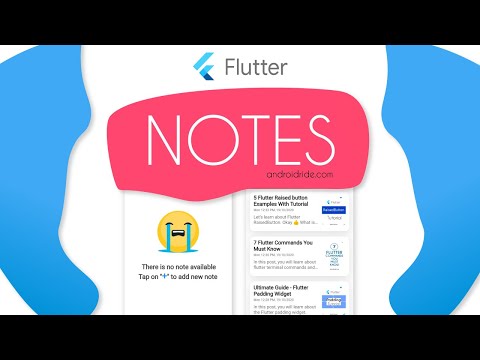
It’s going to be a long tutorial. So grab a cup of coffee and snacks.
Okay…Let’s start.
In this post, you will learn about more widgets and flutter packages like Provider, Sqflite,
Path Provider and
ImagePicker.
Don’t worry about those words haven’t you heard about it. I will talk about that while making.
.
.
.
.
A quick demo

Okay… Let’s make a simple Flutter project named “
flutter_notes“.
If you don’t know how to make a Flutter project read this
command guide and
Flutter Android Studio setup guide.
Now just open pubspec.yaml file and put below packages like given below in dependencies section.
Spacing or indent is more important here, so if you don’t do it well, it will give you an error. Save the file and click on pub get.

dependencies:
  flutter:
    sdk: flutter
  cupertino_icons: ^0.1.3

  google_fonts: ^1.1.0
  image_picker: ^0.6.7+11
  intl: ^0.16.1
  path: ^1.7.0
  path_provider: ^1.6.18
  provider: ^4.3.2+2
  sqflite: ^1.3.1+1
  url_launcher: ^5.7.2
What above packages will do?
- google_fonts: helps us to include fonts from fonts.google.com, there is no need for storing fonts in assets folder.
- image_picker: assist us to take image from our device gallery and using Camera.
- intl: Used to format Date and Time (usage – in this app).
- path: Helps us to join path(usage – in this app).
- path_provider: It gives directory location to store images(usage- in this app).
- provider: Helps to expose value. Google recommended package.
- sqflite: App stores data in sqlite database. Sqflite package helps us to implement all CRUD operations
- url_launcher: helps to open a URL in a browser or webview. Not for only lauching web pages, you can mail, call, and message too.
Now let’s creates directories for categorizing dart files.

Create
helper,
models,
screens,
utils,
widgets directories, and create dart files inside it. helper directory contains two dart files – database_helper.dart, and note_provider.dart.
- database_helper.dart – It contains all database related operations.
- note_provider.dart – Code contains to add, update and delete operations and notify the listeners.
models directory contains a note file.
- note.dart – It holds id, title, content, date, and image location.
screen directory contains 3 screens or pages whatever you call.


-
- note_list_screen.dart – This is the Main Screen, it lists your notes.

- note_view_screen.dart – Page used to read notes.
utils directory contains constants data.
- constants.dart – It lists style constants and color values.
widget directory contains delete_popup.dart and list_item.dart.

-
- delete_popup.dart – Just like the name, it shows alertdialog when the delete note button clicks.

-
- list_item.dart – Your each note represented using this file in list. You can also use CircleAvatar to show image.
So now you got the idea of how this Flutter notes app works. Then let’s start coding… Now we will create each file one by one and explaining how the code works. So keep calm and code… Let’s partially make 3 screens. I assume that you have created all directories and files. So it’s time to code note_list_screen.dart.
- Type “stless” and press Enter key.
- Change to below code
import 'package:flutter/material.dart';

class NoteListScreen extends StatelessWidget
{
  @override
  Widget build(BuildContext context) {

    return FutureBuilder();

      }

}
- Here we are going to use FutureBuilder widget. Depends on the state it will show UI to us
note_edit_screen.dart
- “stful” for stateful widget.
import 'package:flutter/material.dart';
class NoteEditScreen extends StatefulWidget
{
  static const route = '/edit-note';
  @override
  _NoteEditScreenState createState() => _NoteEditScreenState();
}
class _NoteEditScreenState extends State {
  @override
  Widget build(BuildContext context) {
    return Container();
  }
}
note_view_screen.dart
import 'package:flutter/material.dart';

class NoteViewScreen extends StatefulWidget {
  static const route = '/note-view';

  @override
  _NoteViewScreenState createState() => _NoteViewScreenState();
}

class _NoteViewScreenState extends State {
  @override
  Widget build(BuildContext context) {
    return Container();
  }
}
This is just a start.. let’s create Note model.
note.dart
import 'package:intl/intl.dart';

class Note {
  int _id;
  String _title;
  String _content;
  String _imagePath;

  Note(this._id, this._title, this._content, this._imagePath);

  int get id => _id;
  String get title => _title;
  String get content => _content;
  String get imagePath => _imagePath;

  String get date {
    final date = DateTime.fromMillisecondsSinceEpoch(id);
    return DateFormat('EEE h:mm a, dd/MM/yyyy').format(date);
  }
}
- Here _id should be unique one. So It’s better to use note created time.
- _title stores title of the note, _content – content of the note and _imagePath stores location of image
okay… Now move to the backend and create a database.
database_helper.dart
import 'package:path/path.dart';
import 'package:sqflite/sqflite.dart';

class DatabaseHelper {
  static Future database() async {
    final databasePath = await getDatabasesPath();

    return openDatabase(join(databasePath, 'notes_database.db'),
        onCreate: (database, version) {
          return database.execute(
              'CREATE TABLE notes(id INTEGER PRIMARY KEY, title TEXT, content TEXT, imagePath TEXT)');
        }, version: 1);
  }

  static Future<List<Map<String, dynamic>>> getNotesFromDB() async {
    final database = await DatabaseHelper.database();

    return database.query("notes", orderBy: "id DESC");
  }

}
- databasePath stores location of both Android and iOS directory location and we will add it with our database name notes_database.db using path package join() method
- stores id as Integer, others as TEXT format. Using id as Primary Key is considered as good practice.
- In getNotesFromDB() method – just create a database instance and calls query() method in Descending order
- id must be DateTime integer value, So we can sort notes based on Descending order of dates.
- getNotesFromDB() method finally returns List of Map values
note_provider.dart
import 'package:flutter/material.dart';
import 'package:flutter_notes/helper/database_helper.dart';
import '../models/note.dart';

class NoteProvider with ChangeNotifier {
  List _items = [];

  List get items {
    return [..._items];
  }

  Future getNotes() async {
    final notesList = await DatabaseHelper.getNotesFromDB();

    _items = notesList
        .map(
          (item) =>
          Note(
              item['id'], item['title'], item['content'], item['imagePath']),
    )
        .toList();

    notifyListeners();
  }
}
- Using getNotes() method, we can get our notes fromDatabase. After converting to List objects it passes to _items list.
- Calling notifyListeners() will rebuild the listeners.
Now we need to provide the provider inside main.dart file. So let’s move on to main.dart. Clear the whole code inside that and paste the below code.
main.dart
import 'package:flutter/material.dart';
import 'package:flutter_notes/helper/note_provider.dart';
import 'package:flutter_notes/screens/note_list_screen.dart';
import 'package:provider/provider.dart';
import 'package:flutter_notes/screens/note_edit_screen.dart';
import 'package:flutter_notes/screens/note_view_screen.dart';


void main() {
  runApp(MyApp());
}

class MyApp extends StatelessWidget {
  // This widget is the root of your application.
  @override
  Widget build(BuildContext context) {
    return ChangeNotifierProvider.value(
      value: NoteProvider(),
      child: MaterialApp(
        title: "Flutter Notes",
        debugShowCheckedModeBanner: false,
        initialRoute: '/',
        routes: {
          '/': (context) => NoteListScreen(),
          NoteViewScreen.route: (context) => NoteViewScreen(),
        NoteEditScreen.route: (context) => NoteEditScreen(),

        },
      ),
    );
  }
}
- debugShowCheckedModeBanner: false – It removes debug banner.
- Just implement the loading screen inside NoteListScreen like below. don’t worry about those red lines, after you importing the packages declarations it will be okay.
- Here that will be import ‘package:flutter_notes/helper/note_provider.dart’;, import ‘package:provider/provider.dart’;
@override
  Widget build(BuildContext context) {
    return FutureBuilder(
     future: Provider.of<NoteProvider>(context,listen: false).getNotes(),
      builder: (context,snapshot)
      {
        if (snapshot.connectionState == ConnectionState.waiting) {
          return Scaffold(
            body: Center(
              child: CircularProgressIndicator(),
            ),
          );
        }else
          {
            return Container(
                         );
          }

      },
    );
  }
Let’s run now.
- You can see CircularProgressIndicator loading now.
- Here FutureBuilder widget used to build our UI. It needs a future as input, that’s why we have set getNotes() as input.
- While getNotes() loading, builder will provide connectionstate. Using connectionState wec can change our UI.
- When ConnectionState.waiting gets we will load CircularProgressIndicator(),that’s why you have seen a ProgressIndicator now.
- When the ConnectionState changes, it shows a black screen. That is our Container, because build method always needs a Widget.

Let’s create our header before that place some constant values inside constants.dart file
constants.dart
import 'package:flutter/material.dart';
import 'package:google_fonts/google_fonts.dart';

const grey = Color(0xFFEAEAEA);
const grey2 = Color(0xFF6D6D6D);
const black = Color(0xFF1C1C1C);
const black2 = Color(0xFF424242);
const headerColor = Color(0xFFFD5872);
const white = Colors.white;

var headerRideStyle = GoogleFonts.roboto(
  textStyle: TextStyle(
    color: white,
    fontSize: 15.0,
  ),
);

var headerNotesStyle = GoogleFonts.roboto(
  textStyle: TextStyle(
    color: white,
    fontSize: 45.0,
    fontWeight: FontWeight.bold,
  ),
);

enum EditMode {
  ADD,
  UPDATE,
}

var noNotesStyle = GoogleFonts.roboto(
  textStyle: TextStyle(
    fontSize: 22.0,
    color: black2,
    fontWeight: FontWeight.w600,
  ),
);
var boldPlus = GoogleFonts.roboto(
  textStyle: TextStyle(
    fontSize: 30.0,
    color: Colors.blueAccent,
    fontWeight: FontWeight.bold,
  ),
);
var itemTitle = GoogleFonts.roboto(
  textStyle: TextStyle(
    fontSize: 18.0,
    color: black,
    fontWeight: FontWeight.bold,
  ),
);

var itemDateStyle = GoogleFonts.roboto(
  textStyle: TextStyle(
    fontSize: 11.0,
    color: grey2,
  ),
);

var itemContentStyle = GoogleFonts.roboto(
  textStyle: TextStyle(
    fontSize: 15.0,
    color: grey2,
  ),
);

var viewTitleStyle = GoogleFonts.roboto(
  fontWeight: FontWeight.w900,
  fontSize: 28.0,
);

var viewContentStyle = GoogleFonts.roboto(
    letterSpacing: 1.0,
    fontSize: 20.0,
    height: 1.5,
    fontWeight: FontWeight.w400);

var createTitle = GoogleFonts.roboto(
    textStyle: TextStyle(
  fontSize: 28.0,
  fontWeight: FontWeight.w900,
));

var createContent = GoogleFonts.roboto(
  textStyle: TextStyle(
    letterSpacing: 1.0,
    fontSize: 20.0,
    height: 1.5,
    fontWeight: FontWeight.w400,
  ),
);

var shadow = [
  BoxShadow(
    color: Colors.grey[300],
    blurRadius: 30,
    offset: Offset(0, 10),
  )
];
Header Item will show ANDROIDRIDE’S NOTES – when You tap on it, it will show you AndroidRide’s home page. Let’s create a method called header() inside NoteListScreen and don’t forget to
import constants.dart file.
Widget header() {
    return GestureDetector(
      onTap: _launchUrl,
      child: Container(
        decoration: BoxDecoration(
          color: headerColor,
          borderRadius: BorderRadius.only(
            bottomRight: Radius.circular(75.0),
          ),
        ),
        height: 150,
        width: double.infinity,
        child: Column(
          mainAxisAlignment: MainAxisAlignment.center,
          children: [
            Text(
              'ANDROIDRIDE\'S',
              style: headerRideStyle,
            ),
            Text(
              'NOTES',
              style: headerNotesStyle,
            ),
          ],
        ),
      ),
    );
  }
- Here I used GestureDetector that help us to detect if someone taps on it Then it will trigger onTap.
Now you will get a small error due to launchUrl. because We haven’t defined that one. Let’s check how to do that? First we need to import the below line:
import 'package:url_launcher/url_launcher.dart';
then add the below code.
_launchUrl() async {
    const url = 'https://www.androidride.com';
    if (await canLaunch(url)) {
      await launch(url);
    } else {
      throw 'Could not launch $url';
    }
  }
- _launchUrl() loads ‘https://www.androidride.com’ in your browser, if not it will throw an error.
Okay…Now our NoteListScreen shows CircularProgressIndicator when getting Notes. We don’t need to show a Container if the process is done?
Let’s change it and Show a UI indicating that shows there is no note available.
Let’s create another method that shows a loud crying emoji with no notes available message. before that, we must include emoji image, other styling constants, and import flutter gestures.dart’ too.

Let’s add the image. Create an assets folder and paste it there.
You can use any image, if you want an emoji image – you can download our code through subscribing our email.

Add the image in pubspec.yaml file then only the app knows where is your image file.
  # To add assets to your application, add an assets section, like this:
  assets:
     - crying_emoji.png
  #   - images/a_dot_ham.jpe
Widget noNotesUI(BuildContext context) {
    return ListView(
      children: [
        header(),
        Column(
          children: [
            Padding(
              padding: const EdgeInsets.only(top: 50.0),
              child: Image.asset(
                'crying_emoji.png',
                fit: BoxFit.cover,
                width: 200,
                height: 200,
              ),
            ),
            RichText(
              text: TextSpan(
                style: noNotesStyle,
                children: [
                  TextSpan(text: ' There is no note available\nTap on "'),
                  TextSpan(
                      text: '+',
                      style: boldPlus,
                      recognizer: TapGestureRecognizer()
                        ..onTap = () {
                          goToNoteEditScreen(context);
                        }),
                  TextSpan(text: '" to add new note'),
                ],
              ),
            )
          ],
        ),
      ],
    );
  }
import 'package:flutter/gestures.dart';
import gestures.dart for TapGestureRecognizer error. Don’t worry about goToNoteEditScreen(), which will clear after explaining the above code.
- It shows header, emoji image and no note available message.
- Padding widget provides empty space above the image.
- RichText has recognizer property, that we can use to detect tap events. That’s why gestures.dart we added.
Solve the error now.
void goToNoteEditScreen(BuildContext context) {
     Navigator.of(context).pushNamed(NoteEditScreen.route);
  }
We have already implemented creating database and showing CircularProgressIndicator. You know that we haven’t created any notes. So It’s time to show noNotesUI() method. So just copy and replace the code with existing build method inside NoteListScreen.
@override
  Widget build(BuildContext context) {
    return FutureBuilder(
     future: Provider.of<NoteProvider>(context,listen: false).getNotes(),
      builder: (context,snapshot)
      {
        if (snapshot.connectionState == ConnectionState.waiting) {
          return Scaffold(
            body: Center(
              child: CircularProgressIndicator(),
            ),
          );
        }
        else
        {
          if(snapshot.connectionState == ConnectionState.done)
          {
            return Scaffold(
              body: Consumer<NoteProvider>(
                child: noNotesUI(context),
                builder: (context, noteprovider, child) =>
                noteprovider.items.length <= 0
                    ? child
                    : Container(),
              ),
              floatingActionButton: FloatingActionButton(
                onPressed: () {
                  goToNoteEditScreen(context);
                },
                child: Icon(Icons.add),
              ),
            );
          }
            return Container(
              width: 0.0,
              height: 0.0,
            );
          }

      },
    );
  }
- When the ConnectionState becomes ConnectionState.done, second block of code executes.
- When the notes count is less than equal to zero. It shows child in builder property, that is noNotesUI(context) method.
- Using FloatingActionButton, you can go to NoteEditScreen.
If you run the project now, After showing progress, It will show noNotesUI such as header, emoji, and message.

It’s time to create NoteEditScreen. Just paste the below code.
note_edit_screen.dart
import 'dart:io';
import 'package:flutter/material.dart';
import 'package:flutter_notes/helper/note_provider.dart';
import 'package:image_picker/image_picker.dart';
import 'package:flutter_notes/utils/constants.dart';
import 'package:path/path.dart';
import 'package:path_provider/path_provider.dart';
import 'package:provider/provider.dart';
import 'note_view_screen.dart';
class NoteEditScreen extends StatefulWidget {
  static const route = '/edit-note';
  @override
  _NoteEditScreenState createState() => _NoteEditScreenState();
}
class _NoteEditScreenState extends State {
  final titleController = TextEditingController();
  final contentController = TextEditingController();
  File _image;
  final picker = ImagePicker();

  @override
  Widget build(BuildContext context) {
    return Scaffold(
      backgroundColor: white,
      appBar: AppBar(
        elevation: 0.7,
        backgroundColor: Colors.white,
        leading: IconButton(
          onPressed: () => Navigator.of(context).pop(),
          icon: Icon(Icons.arrow_back),
          color: Colors.black,
        ),
        actions: [
          IconButton(
            icon: Icon(Icons.photo_camera),
            color: Colors.black,
            onPressed: () {
              getImage(ImageSource.camera);
            },
          ),
          IconButton(
            icon: Icon(Icons.insert_photo),
            color: Colors.black,
            onPressed: () {
              getImage(ImageSource.gallery);
            },
          ),
          IconButton(
            icon: Icon(Icons.delete),
            color: Colors.black,
            onPressed: () {
              Navigator.pop(context);
            },
          ),
        ],
      ),
      body: SingleChildScrollView(
        child: Column(
          children: [
            Padding(
              padding: EdgeInsets.only(
                  left: 10.0, right: 5.0, top: 10.0, bottom: 5.0),
              child: TextField(
                controller: titleController,
                maxLines: null,
                textCapitalization: TextCapitalization.sentences,
                style: createTitle,
                decoration: InputDecoration(
                    hintText: 'Enter Note Title', border: InputBorder.none),
              ),
            ),
            if(_image != null)
              Container(
                padding: EdgeInsets.all(10.0),
                width: MediaQuery
                    .of(context)
                    .size
                    .width,
                height: 250.0,
                child: Stack(
                  children: [
                    Container(
                      decoration: BoxDecoration(
                        borderRadius: BorderRadius.circular(20.0),
                        image: DecorationImage(
                          image: FileImage(_image),
                          fit: BoxFit.cover,
                        ),
                      ),
                    ),
                    Align(
                      alignment: Alignment.bottomRight,
                      child: Padding(
                        padding: EdgeInsets.all(12.0),
                        child: Container(
                          height: 30.0,
                          width: 30.0,
                          decoration: BoxDecoration(
                            shape: BoxShape.circle,
                            color: Colors.white,
                          ),
                          child: InkWell(
                            onTap: () {
                              setState(
                                    () {
                                  _image = null;

                                },
                              );
                            },
                            child: Icon(
                              Icons.delete,
                              size: 16.0,
                            ),
                          ),
                        ),
                      ),
                    )
                  ],
                ),
              ),
            Padding(
              padding: const EdgeInsets.only(
                  left: 10.0, right: 5.0, top: 10.0, bottom: 5.0),
              child: TextField(
                controller: contentController,
                maxLines: null,
                style: createContent,
                decoration: InputDecoration(
                  hintText: 'Enter Something...',
                  border: InputBorder.none,
                ),
              ),
            ),
          ],
        ),
      ),
      floatingActionButton: FloatingActionButton(
        onPressed: () {
          if (titleController.text.isEmpty)
            titleController.text = 'Untitled Note';
          saveNote();
        },
        child: Icon(Icons.save),
      ),
    );
  }

  @override
  void dispose() {
    titleController.dispose();
    contentController.dispose();
    super.dispose();
  }
}
- Now we have to solve 2 methods. getImage() and saveNote().
- Before that, TextEditingController helps to get data from TextField. TextEditingController should be dispose in dispose() method.
- You can hide and show using Visibility widget too.
Before using image_picker, it’s better to check the documentation. We need to add following keys to
info.plist file, located in
/ios/Runner/Info.plist 
        NSPhotoLibraryUsageDescription
	Need to take Picture from Gallery
	NSCameraUsageDescription
	Need to take Picture using Camera
 void getImage(ImageSource imageSource) async {
    PickedFile imageFile = await picker.getImage(source: imageSource);

    if (imageFile == null) return;

    File tmpFile = File(imageFile.path);
    final appDir = await getApplicationDocumentsDirectory();
    final fileName = basename(imageFile.path);

    tmpFile = await tmpFile.copy('${appDir.path}/$fileName');

    setState(() {
      _image = tmpFile;

    });
  }
- Above code get the Image File if it’s from camera or gallery, and copies to a directory in both Android and iOS .
- After copying image file, setState() called. It will trigger rebuild method.
- That’s how Image shows in this screen.
  void saveNote() {
    String title = titleController.text.trim();
    String content = contentController.text.trim();
    String imagePath = _image != null ? _image.path : null;

      int id = DateTime
          .now()
          .millisecondsSinceEpoch;
      Provider.of<NoteProvider>(this.context, listen: false)
          .addOrUpdateNote(id, title, content, imagePath, EditMode.ADD);
      Navigator.of(this.context)
          .pushReplacementNamed(NoteViewScreen.route, arguments: id);
    }
- In saveNote() – we will save title, content and Image location and gives to provider class.
- DateTime.now().millisecondsSinceEpoch – gives integer number will save as note id.
- EditMode.ADD – means just inserting a new note.
- Using Navigator, NoteViewScreen will loaded, id also passed.
Open note_provider.dart and paste the below code.
  Future addOrUpdateNote(int id, String title, String content,
      String imagePath, EditMode editMode) async {
    final note = Note(id, title, content, imagePath);

    if (EditMode.ADD == editMode) {
      _items.insert(0, note);
    } else {
      _items[_items.indexWhere((note) => note.id == id)] = note;
    }

    notifyListeners();

    DatabaseHelper.insert(
      {
        'id': note.id,
        'title': note.title,
        'content': note.content,
        'imagePath': note.imagePath,
      },
    );
  }
- Here, EditMode is ADD, then it will added to list as the first item. Otherwise, it will updated with the existing note.
- notifyListeners() triggers all Listeners. Most important our ListView, haven’t added yet.
- Create insert() method in database_helper.dart.
static Future insert(Map<String, Object> data) async {
    final database = await DatabaseHelper.database();

    database.insert("notes", data,
        conflictAlgorithm: ConflictAlgorithm.replace);
  }
- database instance created and Note map value is inserted into database
- ConflictAlgorithm.replace – It will replace the data when a unique constraint violation occurs. Here when id found twice.
You can run now. When the note is saved a black screen will appear that’s our NoteViewScreen. What we need now? We need to show the note in ListView. The note will represent in ListItem widget, let’s create that one.

import 'dart:io';
import 'package:flutter/material.dart';
import 'package:flutter_notes/helper/note_provider.dart';
import 'package:flutter_notes/screens/note_edit_screen.dart';
import 'package:flutter_notes/screens/note_view_screen.dart';
import 'package:provider/provider.dart';
import '../utils/constants.dart';
class ListItem extends StatelessWidget {
  final int id;
  final String title;
  final String content;
  final String imagePath;
  final String date;
  ListItem({this.id, this.title, this.content, this.imagePath, this.date});
  @override
  Widget build(BuildContext context) {
    return Container(
      width: double.infinity,
      height: 135.0,
      margin: EdgeInsets.symmetric(horizontal: 12.0, vertical: 8.0),
      child: InkWell(
        onTap: () {
          Navigator.pushNamed(context, NoteViewScreen.route, arguments: id);
        },
        child: Container(
          width: double.infinity,
          padding: EdgeInsets.symmetric(horizontal: 12.0),
          decoration: BoxDecoration(
            color: Colors.white,
            boxShadow: shadow,
            borderRadius: BorderRadius.circular(15.0),
            border: Border.all(color: grey, width: 1.0),
          ),
          child: Row(
            children: [
              Expanded(
                child: Padding(
                  padding: EdgeInsets.symmetric(vertical: 10.0),
                  child: Column(
                    crossAxisAlignment: CrossAxisAlignment.start,
                    children: [
                      Text(
                        title,
                        overflow: TextOverflow.ellipsis,
                        maxLines: 2,
                        style: itemTitle,
                      ),
                      SizedBox(height: 4.0),
                      Text(
                        date,
                        overflow: TextOverflow.ellipsis,
                        style: itemDateStyle,
                      ),
                      SizedBox(
                        height: 8.0,
                      ),
                      Expanded(
                        child: Text(
                          content,
                          maxLines: 2,
                          overflow: TextOverflow.ellipsis,
                          style: itemContentStyle,
                        ),
                      ),
                    ],
                  ),
                ),
              ),
              if(imagePath!=null)
              Row(
                children: [
                  SizedBox(
                    width: 12.0,
                  ),
                    Container(
                      width: 80.0,
                      height: 95.0,
                      decoration: BoxDecoration(
                        borderRadius: BorderRadius.circular(12.0),
                        image: DecorationImage(
                          image: FileImage(
                            File(imagePath),
                          ),
                          fit: BoxFit.cover,
                        ),
                      ),
                    ),
                ],
              ),
            ],
          ),
        ),
      ),
    );
  }
}
- InkWell listen for tap events and perform action on it.
- such as it pushes NoteViewScreen with id.
Let’s build our Note ListView to show ListItems by removing Container.
Consumer(
                child: noNotesUI(context),
                builder: (context, noteprovider, child) =>
                    noteprovider.items.length <= 0
                        ? child
                        : ListView.builder(
                            itemCount: noteprovider.items.length + 1,
                            itemBuilder: (context, index)
                            {
                              if (index == 0)
                              {
                                return header();
                              }
                              else
                              {
                                final i = index - 1;
                                final item = noteprovider.items[i];
                                return ListItem(
                                  id: item.id,
                                  title: item.title,
                                  content: item.content,
                                  imagePath: item.imagePath,
                                  date: item.date,
                                );
                              }
                            },
                          ),
              ),
It’s time to talk about NoteviewScreen. Whenever NoteViewScreen is open, only with a id. So we can use id to get our note from provider and database.
class _NoteViewScreenState extends State {
  Note selectedNote;

  @override
  void didChangeDependencies() {
    super.didChangeDependencies();

    final id = ModalRoute.of(context).settings.arguments;

    final provider = Provider.of<NoteProvider>(context);

    if (provider.getNote(id) != null) {
      selectedNote = provider.getNote(id);
    }
  }
}
- To get id passed from other screens, use ModalRoute.of(context).settings.arguments.
- We need to create getNote() method in note_provider.dart to access the note with id.
Note getNote(int id) {
    return _items.firstWhere((note) => note.id == id, orElse: () => null);
  }
back to NoteViewScreen, you can edit the build method using the below code.
note_view_screen.dart
  @override
  Widget build(BuildContext context) {
    return Scaffold(
      backgroundColor: white,
      appBar: AppBar(
        elevation: 0.7,
        backgroundColor: Colors.white,
        leading: IconButton(
          icon: Icon(
            Icons.arrow_back,
            color: Colors.black,
          ),
          onPressed: () {
            Navigator.pop(context);
          },
        ),
        actions: [
          IconButton(
            icon: Icon(
              Icons.delete,
              color: Colors.black,
            ),
            onPressed: () => _showDialog(),
          ),
        ],
      ),
      body: SingleChildScrollView(
        child: Column(
          crossAxisAlignment: CrossAxisAlignment.start,
          children: [
            Padding(
              padding: const EdgeInsets.all(8.0),
              child: Text(
                selectedNote?.title,
                style: viewTitleStyle,
              ),
            ),
            Row(
              children: [
                Padding(
                  padding: const EdgeInsets.all(8.0),
                  child: Icon(
                    Icons.access_time,
                    size: 18,
                  ),
                ),
                Text('${selectedNote?.date}')
              ],
            ),
            if (selectedNote.imagePath != null)
              Padding(
                padding: const EdgeInsets.symmetric(horizontal: 8.0),
                child: Image.file(File(selectedNote.imagePath)),
              ),
            Padding(
              padding: const EdgeInsets.all(16.0),
              child: Text(
                selectedNote.content,
                style: viewContentStyle,
              ),
            ),
          ],
        ),
      ),
      floatingActionButton: FloatingActionButton(
        onPressed: () {
          Navigator.pushNamed(context, NoteEditScreen.route,
              arguments: selectedNote.id);
        },
        child: Icon(Icons.edit),
      ),
    );
  }

  _showDialog() {
    showDialog(
        context: this.context,
        builder: (context) {
          return DeletePopUp(selectedNote: selectedNote);
        });
  }
}
- showDialog() method helps us to open PopUp alerting delete message.
delete_popup.dart
import 'package:flutter/material.dart';
import '../helper/note_provider.dart';
import '../models/note.dart';
import 'package:provider/provider.dart';

class DeletePopUp extends StatelessWidget {
  const DeletePopUp({
    Key key,
    @required this.selectedNote,
  }) : super(key: key);

  final Note selectedNote;

  @override
  Widget build(BuildContext context) {
    return AlertDialog(
      shape: RoundedRectangleBorder(borderRadius: BorderRadius.circular(5)),
      title: Text('Delete?'),
      content: Text('Do you want to delete the note?'),
      actions: [
        FlatButton(
          child: Text('Yes'),
          onPressed: () {
            Provider.of<NoteProvider>(context, listen: false)
                .deleteNote(selectedNote.id);
            Navigator.popUntil(context, ModalRoute.withName('/'));
          },
        ),
        FlatButton(
          child: Text('No'),
          onPressed: () {
            Navigator.pop(context);
          },
        )
      ],
    );
  }
}
- It just shows an AlertDialog, when user clicks on Yes, Note will be deleted and back to NoteListScreen
Now we need to delete note from provider and database. So add the below line in note_provider.dart
  Future deleteNote(int id) {
    _items.removeWhere((element) => element.id == id);
    notifyListeners();
    return DatabaseHelper.delete(id);
  }
- It checks items with the specified id, if there is any note it will be removed and notify the listeners.
database_helper.dart
  static Future delete(int id) async {
    final database = await DatabaseHelper.database();
    return database.delete('notes', where: 'id = ?', whereArgs: [id]);
  }
- Based on the id, note will deleted from the database.
If you have checked the app you can see that you can’t edit the existing note or it won’t show content in NoteEditScreen. How to solve that problem?
bool firstTime = true;
Note selectedNote;
int id;

  @override
  void didChangeDependencies() {
    super.didChangeDependencies();

    if (firstTime) {
      id = ModalRoute.of(this.context).settings.arguments;

      if (id != null) {
        selectedNote =
            Provider.of<NoteProvider>(this.context, listen: false).getNote(id);

        titleController.text = selectedNote?.title;
        contentController.text = selectedNote?.content;

        if (selectedNote?.imagePath != null) {
          _image = File(selectedNote.imagePath);

        }
      }

      firstTime = false;
    }
  }
- Here we check if the id is null or note. If id isn’t null, then note need to update.
- get note based on id through provider
- Sets title, content and image.
In saveNote() method, we need to tell that the note need to saved or updated. So update the method using below code.
  void saveNote() {
    String title = titleController.text.trim();
    String content = contentController.text.trim();
    String imagePath = _image != null ? _image.path : null;

    if (id != null) {
      Provider.of<NoteProvider>(this.context, listen: false)
          .addOrUpdateNote(id, title, content, imagePath, EditMode.UPDATE);
      Navigator.of(this.context).pop();
    } else {
      int id = DateTime.now().millisecondsSinceEpoch;
      Provider.of<NoteProvider>(this.context, listen: false)
          .addOrUpdateNote(id, title, content, imagePath, EditMode.ADD);
      Navigator.of(this.context)
          .pushReplacementNamed(NoteViewScreen.route, arguments: id);
    }
If the user deleting the note from NoteEditScreen, you must check that note is note on edit mode or update mode.
IconButton(
            icon: Icon(Icons.delete),
            color: Colors.black,
            onPressed: () {
              if (id != null) {
                _showDialog();
              } else {
                Navigator.pop(context);
              }
            },
          )
- If id is not null, alertDialog shown up otherwise pop back
void _showDialog() {
    showDialog(
        context: this.context,
        builder: (context) {
          return DeletePopUp(selectedNote: selectedNote);
        });
  }
Finally, the code is done. now you can check it out and Enjoy adding notes with images or just text, that won’t be a problem.
Download Source Code – Flutter Notes App
Flutter Notes App
If you like this post, please share it with your family and friends.
