In this post, you’ll learn how to create beautifully outlined text in Jetpack Compose using the `drawStyle` parameter. It’s a simple technique that can make your text stand out!

This is how the final output will look!
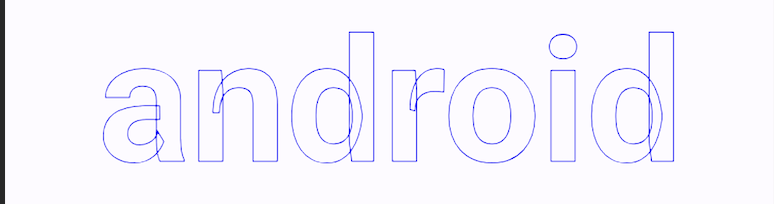
drawStyle = Stroke(width = 1.5f)
- In Jetpack Compose, `TextStyle` provides a `drawStyle` property that allows you to apply a stroke effect to text.
- Increasing the width value makes the outline thicker.
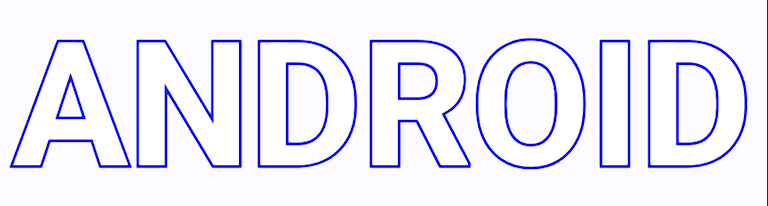
 Box {
                            Text(
                                text = "ANDROID",
                                style = TextStyle(
                                    fontSize = 92.sp,
                                    fontWeight = FontWeight.Bold,
                                    color = Color.Blue,
                                    drawStyle = Stroke(width = 8f)
                                )
                            )
                            Text(
                                text = "ANDROID",
                                style = TextStyle(
                                    fontSize = 92.sp,
                                    fontWeight = FontWeight.Bold,
                                    color = Color.White,
                                    drawStyle = Fill
                                )
                            )
                        }
- We’ll use a Box composable with two Text composables and almost identical properties.
- The second Text composable is drawn on top, so it appears above the first one on the screen.
- We’ll apply a stroke to the first `Text` composable, making its blue outline visible around the white text.
- The second `Text` composable fills the text with white, resulting in white filled text with a blue outline.
- By default, `Text` uses `Fill` as its `drawStyle`. You can remove `drawStyle = Fill`.
Thats all for today.