Path provider methods – getApplicationDocumentDirectory() to latest ones
You can use these 8 methods to access device storage.
getApplicationDocumentsDirectory(): Gives path to the directory where Application can place it’s private files, Files only get wiped out when application itself removed. iOS – NSDocumentsDirectory API. Android – returns AppData directory.
final directory = await getApplicationDocumentsDirectory();
getTemporaryDirectory(): This gives path to the temporary directory in device. Files can be deleted at any time. iOS – It uses NSCachesDirectory API Android – Use getCacheDir API
getExternalStorageDirectories: It returns list of path of directories where app’s specific data can be stored. Commonly, path lives in external storage partitions or SD cards. Now it’s only available in Android, So before use, it’s better to find out the operating system. on iOS, it shows UnSupportedError. Android: it returns Context.getExternalFilesDirs(String type). Below API 19: Context.getExternalFilesDir(String type).
getExternalStorageDirectory(): Only available in Android. Provides path to External storage(Generally SD card).
This does not support in iOS, it will throw UnSupportedError if you use it.
getDownloadsDirectory(): It returns path of the directory where downloaded files get stored. Not available in Android and iOS, it gives UnSupportedError.
getExternalCacheDirectories(): It returns list of path of directories where app’s external cache data get stored. Commonly, these types of paths lives in SD cards and only available in Android, better check it out which OS is running because iOS throws UnSupportedError.
Android – returns Context.getExternalCacheDirs(). Below API 19 : Context.getExternalCacheDir() API.
getLibraryDirectory():It returns path of the directory where app store persistent data such as sqlite.db, Not available in Android.
getApplicationSupportDirectory(): It returns the directory where app place support files. It’s not recommended to use for user data files.
Before creating UI, let’s create createDir() method which creates directory.
  createDir() async {
    final directoryName = 'AndroidRide';
    final docDir = await getApplicationDocumentsDirectory();
    final myDir = Directory('${docDir.path}/$directoryName');

    if (await myDir.exists()) {
      print(myDir.path);
    }

    final dir = await myDir.create(recursive: true);
    print(dir.path);
  }
This is the latest version. Starting from 0.6.7, API has changed a lot, If you are using the old versions of this plugin, You should migrate to the new version.
Most important, pickImage is deprecated, you should use ImagePicker.getImage() method instead.
iOS developers – You need to add some key value pairs in this file /ios/Runner/Info.plist
NSPhotoLibraryUsageDescriptionNeed to take picture from photo library
This will show iOS users when they tried to open the photo library.
NSCameraUsageDescriptionNeed to take picture using Camera
You don’t need to do anything with Android if you are trying to develop Apps for API 29+
If you are targeting API level below 29, then you need to add
android:requestLegacyExternalStorage="true"
Clean main.dart file and put the below code. You can easily create StatefulWidget by typing stful.
First, you need to create instance of ImagePicker and File.
then you need to import below statements.
import ‘dart:io’;
import ‘package:image_picker/image_picker.dart’;
Let’s create image taking method called _getImage().
//ImageSource: Camera and Gallery.
 _getImage(ImageSource imageSource) async
{
    PickedFile imageFile = await picker.getImage(source: imageSource);
//if user doesn't take any image, just return.
    if (imageFile == null) return;

    setState(
      () {
//Rebuild UI with the selected image.
        _image = File(imageFile.path);
      },
    );
  }
You can directly use ImageSource.camera or ImageSource.gallery in getImage() method. In this way you can implement both features and reduce code.
Let’s talk about ImagePicker pickImage() arguments:
source: Gallery or Camera.
imageQuality: value ranges from 0-100, where 100 is max/original quality. If it’s null, the original quality returned.
maxHeight: specify the maximum height of the Image, if it’s not specified original height returned.
maxWidth: specify the maximum width of the Image, if it’s null original width returned.
preferredCameraDevice: By default, it uses CameraDevice.rear. You can change it to CameraDevice.front.
Flutter Image_Picker – Capture Image & Store Example
In this example, you will capture an image using camera and store it in the device storage.
Create a Flutter project named imagepicker_save_example
open pubspec.yaml, Just like mentioned above, add imagepicker dependency with path and path_provider.
just like the first example, create File and ImagePicker instance in state class.
File _image;

final picker = ImagePicker();
Now it’s time to make _getImage() and store it in the device storage.
  _getImage() async
{
//ImageSource: camera
    PickedFile imageFile = await picker.getImage(source: ImageSource.camera);
//If there is no image selected, return.
    if (imageFile == null) return;
//File created.
    File tmpFile = File(imageFile.path);
//it gives path to a directory - path_provider package.
    final appDir = await getApplicationDocumentsDirectory();
//filename - returns last part after the separator - path package.
    final fileName = basename(imageFile.path);
//copy the file to the specified directory and return File instance.
    tmpFile = await tmpFile.copy('${appDir.path}/$fileName');
//prints file location
    print('File path is :${tmpFile.path}');

    setState(() {
      _image = tmpFile;
    });
  }
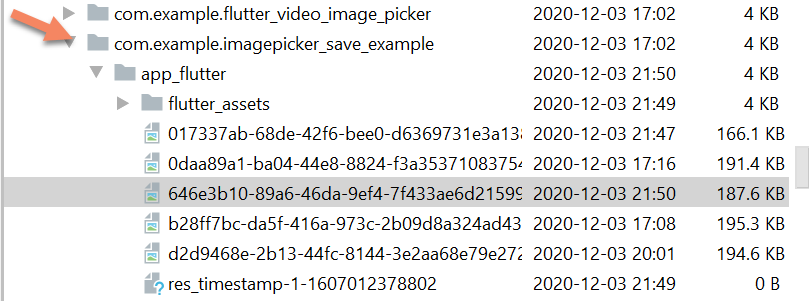
How to view those Image Files stored in Emulator/Device?
In Android Studio, View -> Tool Windows -> Device File Explorer.
Based on this example, images located inside data/data/com.example.imagepicker_save_example/app_flutter/image files.
How to take Video from Gallery or capture using Camera – Flutter ImagePicker
Using ImagePicker, you can pick and capture videos too. So in this example, you will select or record video using ImagePicker and play it using video_player.
So create a project named flutter_imagepicker_video_example, that’s a long name.
After the project created, open pubspec.yaml and paste the below dependencies,
video_player: ^1.0.1
image_picker: ^0.6.7+14
iOS – ImagePicker
put below keys to info.plist file, located in /ios/Runner/Info.plist.
if you are making an app for the above API 29, there is no configuration required. For below API 29, add the below attribute to the tag in AndroidManifest.xml.
android:requestLegacyExternalStorage="true"
Let’s configure video_player…
iOS – video_player
Paste below entries to info.plist file
NSAppTransportSecurityNSAllowsArbitraryLoads
Actually, these keys allow using Video files by URLs.
Android
paste the permission in AndroidManifest.xml
clear your main.dart file and make statefulWidget by typing stful and paste below code.
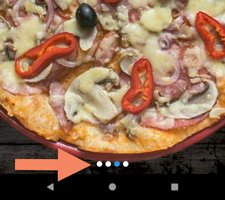
In this post, you will learn about the Flutter Swiper package. Using this library, you can create image Carousel.
Let’s make a simple image carousel like above.
Create a Flutter project in Android Studio or Visual Studio. If you don’t know how to create a Flutter project in Android Studio, then read this post Android Studio Flutter Project Setup.
When user taps on image, it prints image url from the imageList
If you are trying to refresh the UI after onTap triggered, then you must convert the class into a StatefulWidget and call setState() inside onTap method block.
Stack Layout Example
In this example, you will learn how to make a stack layout carousel using the same Image URLs used in the first example.
What is FloatingActionButton or Floating Button in Flutter?
FloatingActionButton is a simple button floating above the body at the bottom right corner. Provides immediate access for a primary function.
For example, the Gmail app.
When you are trying to composing a new mail, you are tapping the FloatingActionButton.
How to make a FloatingActionButton in Flutter
It’s very simple because Scaffold provides a floatingActionbutton property. You just need to give its value. Okay…Let’s create a simple Flutter project
with FloatingActionbutton.
This is just a simple example, If you want to redraw your widget you need to convert StatelessWidget in to StatefulWidget and call setState() method.
There are 2 types of FloatingActionButton constructors are available now.
1) FloatingActionButton() constructor – You have seen that how to use this constructor in above example.
2) FloatingActionButton.extended() – It just needs label as extra property.
In this example, you will create a BottomAppBar using bottomNavigationBar property with FloatingActionButton. For aligning FAB, Use Scaffold’s floatingActionButtonLocation property.
When the FAB is clicked, it will call setState method with updating counter variable value.
setState() method re-runs build() method, that updates Text value.
Let’s learn about other FloatingActionButton properties.
How to disable FloatingActionButton in Flutter
It is easy to disable FloatingActionButton, just provide a null value for onPressed property. But it is not recommended, because there is no sign that FAB is disabled, So it’s better to change the background color of FAB while it’s in a disabled state.
How to reduce FloatingActionButton size in Flutter?
By default, FloatingActionButton’s width and height are 56.0 logical pixels. Using mini property, you can reduce the Floating Button size to 48.0 logical pixels in both width and height.
This post contains affiliate links. If you use these links to buy something I may earn a commission. Thanks.”
Let’s learn more about Flutter by making a Note-taking app. Using this app
It’s going to be a long tutorial. So grab a cup of coffee and snacks.
Okay…Let’s start.
In this post, you will learn about more widgets and flutter packages like Provider, Sqflite, Path Provider and ImagePicker.
.
.
.
.
A quick demo
Okay… Let’s make a simple Flutter project named “flutter_notes“.
If you don’t know how to make a Flutter project read this command guide and Flutter Android Studio setup guide.
Now just open pubspec.yaml file and put below packages like given below in dependencies section.
Spacing or indent is more important here, so if you don’t do it well, it will give you an error. Save the file and click on pub get.
So now you got the idea of how this Flutter notes app works. Then let’s start coding… Now we will create each file one by one and explaining how the code works. So keep calm and code… Let’s partially make 3 screens. I assume that you have created all directories and files. So it’s time to code note_list_screen.dart.
This is just a start.. let’s create Note model. note.dart
import 'package:intl/intl.dart';

class Note {
  int _id;
  String _title;
  String _content;
  String _imagePath;

  Note(this._id, this._title, this._content, this._imagePath);

  int get id => _id;
  String get title => _title;
  String get content => _content;
  String get imagePath => _imagePath;

  String get date {
    final date = DateTime.fromMillisecondsSinceEpoch(id);
    return DateFormat('EEE h:mm a, dd/MM/yyyy').format(date);
  }
}
Here _id should be unique one. So It’s better to use note created time.
_title stores title of the note, _content – content of the note and _imagePath stores location of image
okay… Now move to the backend and create a database. database_helper.dart
databasePath stores location of both Android and iOS directory location and we will add it with our database name notes_database.db using path package join() method
stores id as Integer, others as TEXT format. Using id as Primary Key is considered as good practice.
In getNotesFromDB() method – just create a database instance and calls query() method in Descending order
id must be DateTime integer value, So we can sort notes based on Descending order of dates.
getNotesFromDB() method finally returns List of Map values
note_provider.dart
import 'package:flutter/material.dart';
import 'package:flutter_notes/helper/database_helper.dart';
import '../models/note.dart';

class NoteProvider with ChangeNotifier {
  List _items = [];

  List get items {
    return [..._items];
  }

  Future getNotes() async {
    final notesList = await DatabaseHelper.getNotesFromDB();

    _items = notesList
        .map(
          (item) =>
          Note(
              item['id'], item['title'], item['content'], item['imagePath']),
    )
        .toList();

    notifyListeners();
  }
}
Using getNotes() method, we can get our notes fromDatabase. After converting to List objects it passes to _items list.
Calling notifyListeners() will rebuild the listeners.
Now we need to provide the provider inside main.dart file. So let’s move on to main.dart. Clear the whole code inside that and paste the below code. main.dart
Just implement the loading screen inside NoteListScreen like below. don’t worry about those red lines, after you importing the packages declarations it will be okay.
Here that will be import ‘package:flutter_notes/helper/note_provider.dart’;, import ‘package:provider/provider.dart’;
Header Item will show ANDROIDRIDE’S NOTES – when You tap on it, it will show you AndroidRide’s home page. Let’s create a method called header() inside NoteListScreen and don’t forget to import constants.dart file.
Here I used GestureDetector that help us to detect if someone taps on it Then it will trigger onTap.
Now you will get a small error due to launchUrl. because We haven’t defined that one. Let’s check how to do that? First we need to import the below line:
_launchUrl() loads ‘https://www.androidride.com’ in your browser, if not it will throw an error.
Okay…Now our NoteListScreen shows CircularProgressIndicator when getting Notes. We don’t need to show a Container if the process is done?
Let’s change it and Show a UI indicating that shows there is no note available.
Let’s create another method that shows a loud crying emoji with no notes available message. before that, we must include emoji image, other styling constants, and import flutter gestures.dart’ too.
Let’s add the image. Create an assets folder and paste it there.
You can use any image, if you want an emoji image – you can download our code through subscribing our email.
Add the image in pubspec.yaml file then only the app knows where is your image file.
  # To add assets to your application, add an assets section, like this:
  assets:
     - crying_emoji.png
  #   - images/a_dot_ham.jpe
We have already implemented creating database and showing CircularProgressIndicator. You know that we haven’t created any notes. So It’s time to show noNotesUI() method. So just copy and replace the code with existing build method inside NoteListScreen.
If you run the project now, After showing progress, It will show noNotesUI such as header, emoji, and message. It’s time to create NoteEditScreen. Just paste the below code. note_edit_screen.dart
database instance created and Note map value is inserted into database
ConflictAlgorithm.replace – It will replace the data when a unique constraint violation occurs. Here when id found twice.
You can run now. When the note is saved a black screen will appear that’s our NoteViewScreen. What we need now? We need to show the note in ListView. The note will represent in ListItem widget, let’s create that one.
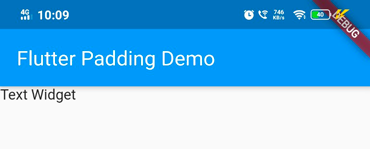
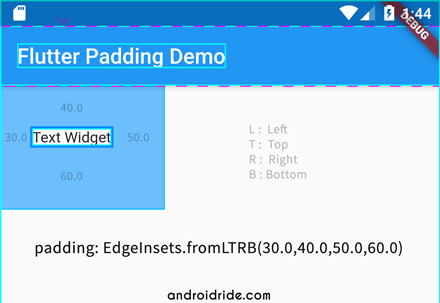
The padding widget gives empty space around the child widget. So if your widgets are colliding with each other and you think it is nice to add space around your widget, give it a go with Padding. Simply make your widget as a child of the Padding and give value.
From the title, you can understand that It’s a raised button.
Yes, it is.
Actually the button appears elevated or in more detail, it placed higher than the surrounding area or page. It shows more shadow when the button is tapped.
Sometimes you need to disable the button and change it’s color, then apply disabledColor property like shown below. Just specify color as disabledColor property value.
It’s a focus related property, utilize focusNode property to set focus to RaisedButton. Look at the focusColor property, the given below how to use focusNode.
9.Color focusColor
When RaisedButton gets the focus, focusColor property helps us to change the color of RaisedButton.
When you enter a key in TextField, it calls onChanged and make request to the _raisedFocusNode
RaisedButton’s focusNode value is _raisedFocusNode. When the RaisedButton gets focus, focusColor invokes and shows Red color
10.Color hoverColor
Use this property to change color when the pointer is hovering over the button. There is no hovering action in Mobile devices.
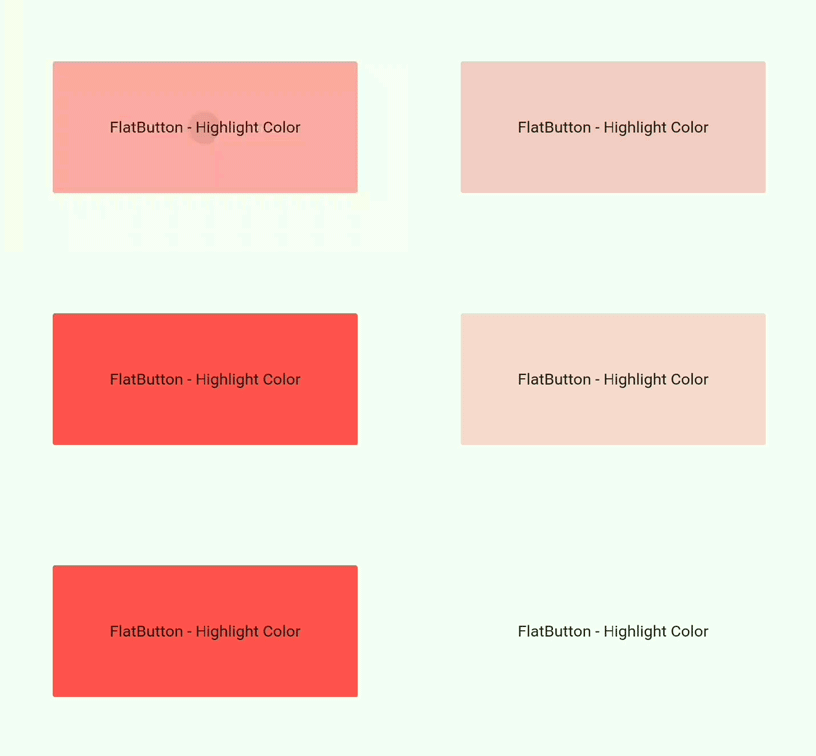
11.Color highlightColor
highlightColor property uses to highlight the RaisedButton When it tapped.
RaisedButton(
          padding: EdgeInsets.all(25),
          highlightColor: Colors.redAccent,
          child: Text('RaisedButton - highlight Color'),
          onPressed: () {
            //onpressed gets called when the button is tapped.
            print("RaisedButton tapped");
          },
        ),
12. Color splashColor
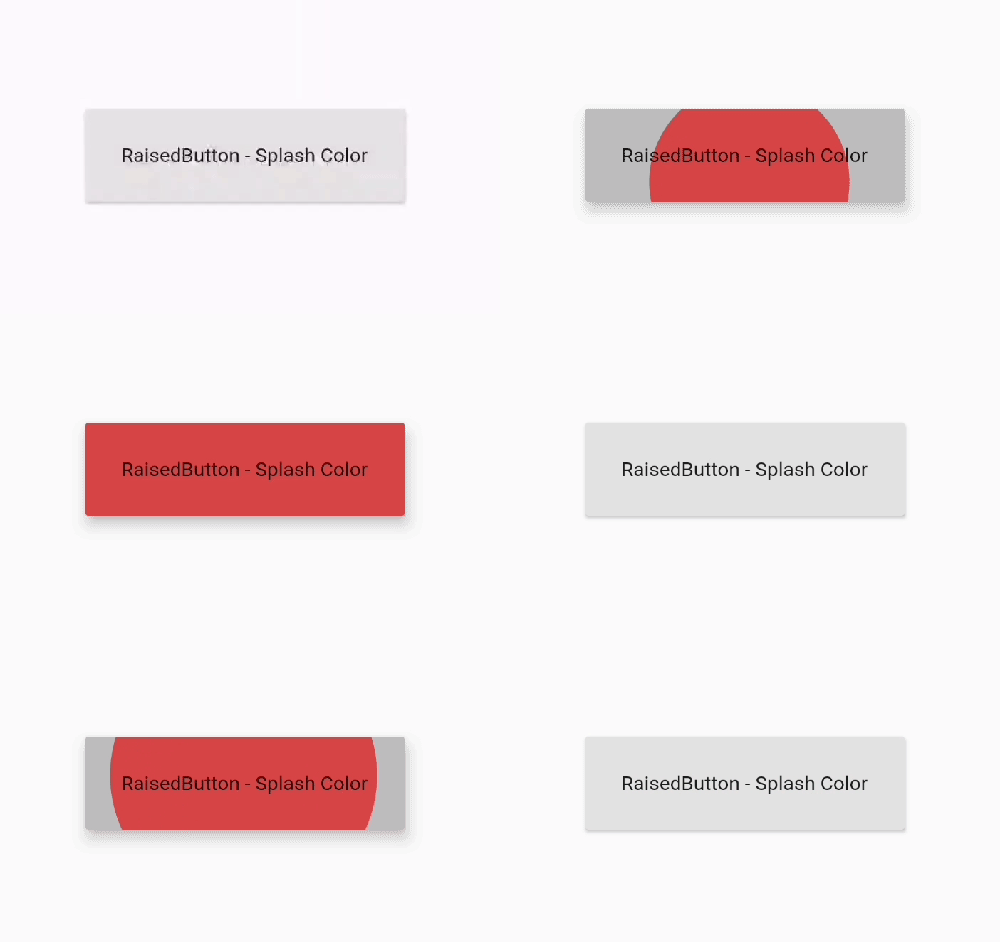
splashColor property shows animation when touches the button, Like something falls into liquid.
RaisedButton(
          padding: EdgeInsets.all(100),
          splashColor: Colors.redAccent,
          child: Text('RaisedButton - Splash Color'),
          //makes background color white
          onPressed: () {
            //onpressed gets called when the button is tapped.
            print("FlatButton tapped");
          },
        ),
13. Brightness colorBrightness
If colorBrightness is Brightness.light, then text color set to Black, otherwise text color set to white.
RaisedButton(
                child: Text('RaisedButton - Brightness.light'),
                colorBrightness: Brightness.light,
                color: Colors.blue[100],
                onPressed: () {
                  //onpressed gets called when the button is tapped.
                  print("RaisedButton tapped");
                },
              ),
              RaisedButton(
                child: Text('RaisedButton - Brightness.dark'),
                colorBrightness: Brightness.dark,
                color: Colors.black,
                onPressed: () {
                  //onpressed gets called when the button is tapped.
                  print("RaisedButton tapped");
                },
              ),
14. double elevation
By increasing elevation, you can see RaisedButton is more floating above the page and shadow spreads too.
RaisedButton(
          elevation: 5.0,
          color: Color(0xFFCE93D8),
          child: Text('RaisedButton - Elevation'),
          onPressed: () {
            //onpressed gets called when the button is tapped.
            print("RaisedButton tapped");
          },
        ),
15. double focusElevation
This property used to elevate or make shadow when the RaisedButton gets focus.
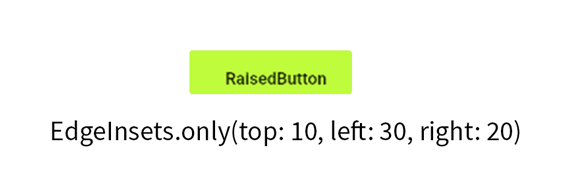
If you want to move text child to certain sides only, then you can use EdgeInsets.only()
You can specify more than one side.
You can specify horizontal or vertical sides by applying EdgeInsets.symmetric().
20. Widget child
Just like almost other Flutter widgets, RaisedButton also gives child property to hold other widget.
Most of the time the child must be Text. But you can use others too. For example, the Image.
21. autofocus
RaisedButton’s autofocus is false by default. you can turn it on by adding autofocus:true.
Yes, Because by default, it’s just a black text or label without any
borders
elevation
You can use flatbutton in toolbars, dialogs, cards, and where ever enough space to add. Flatbutton also make the icon widget using FlatButton.icon().
FlatButton Simple Example
So let’s start programming and make a simple FlatButton like below. You can create flutter project using flutter command or with the help of Android Studio.
You don’t need to give parentheses ‘()’ here. Only the function name. Download all source code from the top link.
2. VoidCallback onLongPress
This property gets called when a long tap occurs. Just like onPressed property, pass an anonymous function or method name.
FlatButton(onLongPress: (){},
3. ValueChanged onHighlightChanged
onHighlightChanged calls when you click down or up the button. When the button clicks down, it gives true value. false when button clicks up.
FlatButton(
            child: Text('FlatButton'),
            onHighlightChanged: (value) {
              print('onHighlightChanged value : $value');
            },
            onPressed: () {
              //onpressed gets called when the button is tapped.
            },
          ),
4. ButtonTextTheme textTheme
It control the button’s text color based on the theme. There are 3 values
EdgeInsets.all() – Give enough padding to all sides of button’s text. Above code will apply 50 padding for all sides of the Text(Top, Bottom, Left and Right).
EdgeInsets.only() – It gives padding to the only specified side. You can specify one or more sides like below.
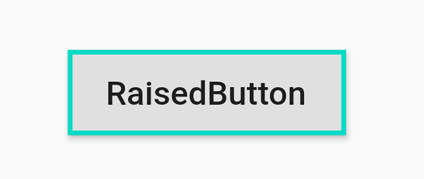
Shape property gives different options to make different shapes of flatbutton. Let’s make a rectangle FlatButton using shape property with the help of Border.all().
In this post, you will learn about flutter terminal commands and command-line options. Using Flutter command-line interface (CLI), you can perform lots of operations in your project.
Before that make sure you have downloaded Flutter SDK and updated path variable if you are using Windows.
7. Flutter clean – Reduces Project Size by deleting build and .dart_tool directories.
When I created a simple flutter app, it’s size only below 200 kb but after a run in an emulator, Its size largely increases and takes more than 300 MB.
So if you have a low-configuration PC and you are learning flutter by making different apps. That might takes lots of memory in your device.
So just use below command in the root folder of the project.
flutter clean
flutter clean command
Using “flutter clean” command, you can reduce flutter project size. The command just deletes the build directory and some other files.
6.Flutter build – List Build Commands
For publishing your flutter app, you need to make binaries for Android and Ios. The build command by default makes a release flavor of the app.
flutter build
It helps to list build formats of flutter
flutter build appbundle - build an appbundle
Recommended to build appbundle than apk.
flutter build apk
It builds fat apk.
flutter build apk --split-per-abi
Above command creates apks based on ABI.
flutter build ios
Creates binaries for Ios.
5. Flutter channel – List Different Flutter Source Code Branches
Flutter channel means a git branch where we get Flutter source code. It could be used to change different branches such as master, dev, beta, and stable.
Just run “flutter channel” to find out.
flutter channel
The channel with star symbol is you are currently using.
Here I am using stable channel and stable is recommended for product development.
Let’s change the channel…
flutter channel [channel_name] – this is syntax, let’s change stable to master.
flutter channel master
change flutter channel to master
run “flutter upgrade” to ensure you are on the latest build.
4. Flutter run – Run Flutter Project
If you have created your flutter project, then you can run it on any devices or emulators using the run command. While using the run command, it must be called from the root directory of the project. you can use cd command for that purpose.
cd flutter_app
flutter run
If there are no emulators and devices connected, cmd will show “No supported devices connected”.
The app will get loaded and start running, If single device get connected,.
Multiple devices get connected, specify one device id with “flutter run -d” command
flutter run & fluttter run -d
Just look at the above image, I just run “flutter run” and I got two devices, emulator and a physical device.
flutter run -d emulator-5554
Here I use emulator-5554 as device id.
If you want to run app on all devices, run “flutter run -d all” command.
By default, the debug version of the app will run on your device. It supports hot reload and fine for testing purposes.
There are other build flavors you can use like profile, flavor, and release.
the release version is for when you ready to publish it in play store or Appstore and it is not supported for emulators.
flutter run --release
If you use above command, you could see that the debug banner is gone.
3.flutter create – Create new flutter project Using Command Line
This command is used to create flutter projects, such as Flutter application, package, plugin, and module.
flutter create [output_directory_name or project_name]
Creates a Flutter app project
flutter create flutter_app
Creates a flutter app named “flutter_app”.
flutter create new project command line
After running above command, necessary files will be created on the specified name.
project name – It’s recommended to use lowercase with underscores.
If you run flutter create with existing flutter project name then the project will be recreated and if there are any files is missing, that too recreated again.
flutter recreates project
I have deleted main.dart file in the lib folder, now it recreated.
Let’s create a project with our own package name and description, use below code
It creates a package name with “com.androidride”, you can view description in README.md
Let’s check how to create a package using flutter commands.
flutter create -t package flutter_package
Creates a package named flutter_package.
flutter create package
You can use -t or –template to specify the flutter project.
Let’s create a plugin project with flutter create command.
flutter create -t plugin flutter_plugin
It creates plugin project named flutter_plugin.
By default, swift is used as ios language, Kotlin for Android.
we can change that by using the below command.
flutter create -t plugin -i objc -a java my_flutter_plugin
Here -i means ios language – objc used, -a means android language.
You can remove -t plugin, if you are making Flutter application
2.Flutter doctor – Diagnoses Flutter system environment.
This command diagnoses our system and tells us is everything fine or any issues need to treat just like a doctor.
If there are no issues, you are good to go. You don’t need to worry about all issues. For example, you are making a flutter app in VS Code, So you can avoid problems associated with Android Studio.
For example, Flutter plugin not installed in Android Studio like error.
flutter doctor
Here I have one issue because I haven’t connected any devices.
Okay… Let’s know more details by running
flutter doctor -v
Using the above image, we can understand that flutter doctor -v gave more details about our Flutter development environment and tools.
1. flutter help
Just like the name it helps developers to find other commands and tells us how to use them just like a senior developer who is sitting nearby you. So I think, you don’t need to remember all commands I told above, Just remember this one.
flutter help
flutter -h and flutter –help give you the same results.
flutter help
flutter help -v
The above command gives a verbose output of flutter help.
flutter help [command]
Using the above syntax, we can check how other commands work.
flutter help create
Above command helps us to know more about create command.
flutter help create
Flutter Other Commands
Now I will show you some other commands with fewer details that helped me while I create flutter apps.
flutter doctor –android-licenses – It helps to accept all android licenses. If it didn’t work, use (your android_sdk directory)\tools\bin\sdkmanager –licenses
flutter logs – Shows logs generated by flutter apps in emulators and devices.
flutter analyze – It guides to make better code.
flutter config – Configures Flutter SDK and other settings.
flutter config –android-sdk “SDK_PATH” – set Android SDK path.
flutter config –android-studio-dir “ANDROID_STUDIO_DIRECTORY_LOCATION” – sets Android Studio directory location
flutter upgrade – upgrade Flutter SDK to latest version
flutter downgrade – downgrade Flutter SDK to lower version
flutter pug get – pub is dart’s package manager, this command installs packages. The same function as packages get in Android Studio and Get packages in VS code.
flutter pub upgrade – upgrade packages to the latest version.
flutter emulators – shows available emulators.
flutter devices – shows connected emulators and devices
flutter screenshot – Takes screenshot from emulator or device
flutter screenshot -o C:\Users\Admin\Desktop\screenshot.png – Takes screenshot and stores in Desktop. (Windows users)
That’s all for now. Thank you. If you like this post, please share it with your friends and family.
Welcome to our first Flutter Android Studio tutorial.
Let’s start by talking about Flutter.
Google has introduced its software development kit Flutter in 2017. Using Flutter, you can develop applications for Android, ios, Mac, Windows, Linux, and More.
If you are making an app for Android and ios. You can consider using Flutter, which helps you to make both in one codebase.
While scrolling down, you will see a blue button with flutter latest SDK version in a zip file, just click on it.
Download begins…
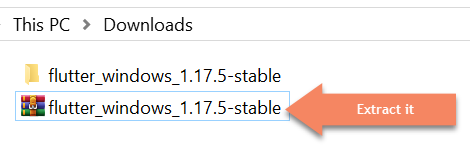
After the download, Extract the zip file
Just cut and paste the extracted file in C drive, just like above. You can choose your suitable location except for Program Files in C drive.
Just click on the extracted directory.
Click on flutter.
This is Flutter software development kit. Here you can click on flutter console and check flutter commands.
This is flutter console window.
click on bin folder.
We need to update the PATH variable with “…/flutter/bin”, then only we can run flutter commands from any command prompt.
So copy the path with “flutter/bin” like shown above.
How To Update Path Variable With Flutter SDK Path In Windows
Search “env” on the search bar and click on “Edit environment variables for your account”.
Click on the path field -> Edit -> New -> Paste it in the empty field. Just like above.
Click Ok.
If the Path variable doesn’t exist, you need to create one. By clicking New->Providing values in each field (name and value) and click OK (just like shown above).
Open the command prompt, and run the “flutter doctor” command.
If there is any problem you will see the red cross mark.
Here I got errors because flutter and dart plugin are unavailable, let’s clear it now.
How To Install Flutter Plugin In Android Studio
Open Android Studio
If you don’t get a window like the above image.
You may not close your last opened project. So just close your project, File -> Close Project.
Click on “Configure“.
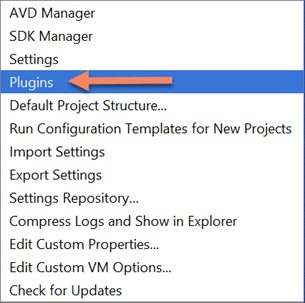
Next click on the “plugins” items from the drop-down menu.
Next, we have to find the flutter plugin from the marketplace. Make sure you are on the marketplace tab.
Then search “Flutter” in the search box and press Enter.
Click on the install button to install the flutter plugin.
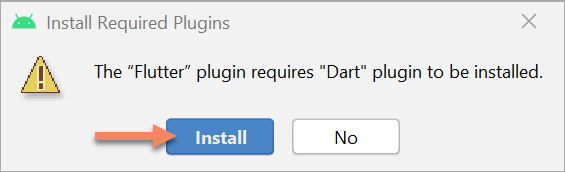
Dart plugin is also needed to make flutter applications. You don’t need to install separately. Just click on ‘Install‘ on the dialog box.
It will automatically download both.
Now click on the Restart IDE button to restart the Android Studio.
In the next alert dialog box, “Restart Android Studio to activate changes in plugins?“. Click on Restart.
After the restart, now you can see “Start a new flutter project” item in the window.
That means you have successfully installed a flutter plugin in Android Studio.
But check again to confirm our system is ready to create flutter applicaions using flutter doctor command.
Everything fine now.
How To Create Flutter Project In Android Studio
Click on “Start a new Flutter project”.
Select “Flutter Application” and click “Next”.
How To Change Flutter SDK Path In Android Studio
I just let the project name as ‘flutter_app’. After that, one of the important step is to change the Flutter SDK path.
Click on Flutter SDK path …(3 dot) button.
Now you have to select the flutter SDK location, for me, it’s in C drive. Expand drives by clicking on it.
After selecting flutter folder just click OK.
Flutter SDK path is set now, then click Next.
Change package name if you want.
I have changed to “com.androidride” , leave others, and click Finish.
How To Run Flutter Project In Android Studio
After the build, the project will shown up just like above.
Like Android Project, Select your emulator and click on Run button.
The flutter application is ready now.
How To Open Existing Flutter Project In Android Studio
Method I – Drag And Drop Flutter Project To Android Studio
Before drag and drop your project, make sure you have installed the flutter plugin in Android Studio.
Method II – Using Open An Existing Android Studio Project
Click on “Open an Existing Android Studio project “.
Now you have to find the location of your flutter project. Here, my fluter project is located at desktop.
After selecting your project, just click OK.
The project is ready now.
I believe that this post will help you start your flutter journey. If you like this post, please share it with your family and friends. Thank you.









 This post contains affiliate links. If you use these links to buy something I may earn a commission. Thanks.”
Let’s learn more about Flutter by making a Note-taking app. Using this app
This post contains affiliate links. If you use these links to buy something I may earn a commission. Thanks.”
Let’s learn more about Flutter by making a Note-taking app. Using this app
 Okay… Let’s make a simple Flutter project named “flutter_notes“.
If you don’t know how to make a Flutter project read this
Okay… Let’s make a simple Flutter project named “flutter_notes“.
If you don’t know how to make a Flutter project read this 
 Create helper, models, screens, utils, widgets directories, and create dart files inside it. helper directory contains two dart files – database_helper.dart, and note_provider.dart.


 Let’s create our header before that place some constant values inside constants.dart file
 Let’s add the image. Create an assets folder and paste it there.
You can use any image, if you want an emoji image – you can download our code through subscribing our email.
Let’s add the image. Create an assets folder and paste it there.
You can use any image, if you want an emoji image – you can download our code through subscribing our email.  Add the image in pubspec.yaml file then only the app knows where is your image file.
 It’s time to create NoteEditScreen. Just paste the below code. note_edit_screen.dart